 Get Coverfetch
How to build a reading tracker in Notion
A reading tracker in Notion is one database: each book is a row, with a few properties (author, status, pages, rating), a cover image, and a gallery view so it looks like a bookshelf. You can build it in one sitting on Notion's free plan. Here's the setup I use, step by step, including the part most trackers fail on: adding books without the busywork.
What you need
Just a Notion account. Everything here works on the free plan, on desktop, web and mobile.
Step 1: Create the database
- Make a new page and call it something like Bookshelf or Library.
- Type
/databaseand choose Database – Inline (or Full page if you want it to take the whole page). - Rename the database to Books. Each row in it is now a book, and the Name column is its title. You can rename that column to Title.
Step 2: Add the properties
Keep it small. A tracker with twenty properties is a tracker you stop updating. These are the ones I'd start with:
| Property | Type | What it's for |
|---|---|---|
| Authors | Multi-select | One tag per author, so you can filter by author |
| Status | Status | Want to read / Reading / Read |
| Genres | Multi-select | Filtering and the genre view |
| Pages | Number | Length, and the progress bar later |
| Rating | Select | ★ to ★★★★★ |
| Started / Finished | Date | When you read it |
There's a longer breakdown, with the nice-to-haves like ISBN, publisher and summary, in what properties a Notion book database should have.
Step 3: Set up Status
Notion's Status property comes with three groups: To-do, In progress and Complete. Rename the options inside them:
- To-do: Want to read
- In progress: Reading
- Complete: Read, and optionally Did not finish
Make Want to read the default, so every new book starts there.
Step 4: Make the views
Views are what make the tracker pleasant to open. Add these with the + next to the view tabs:
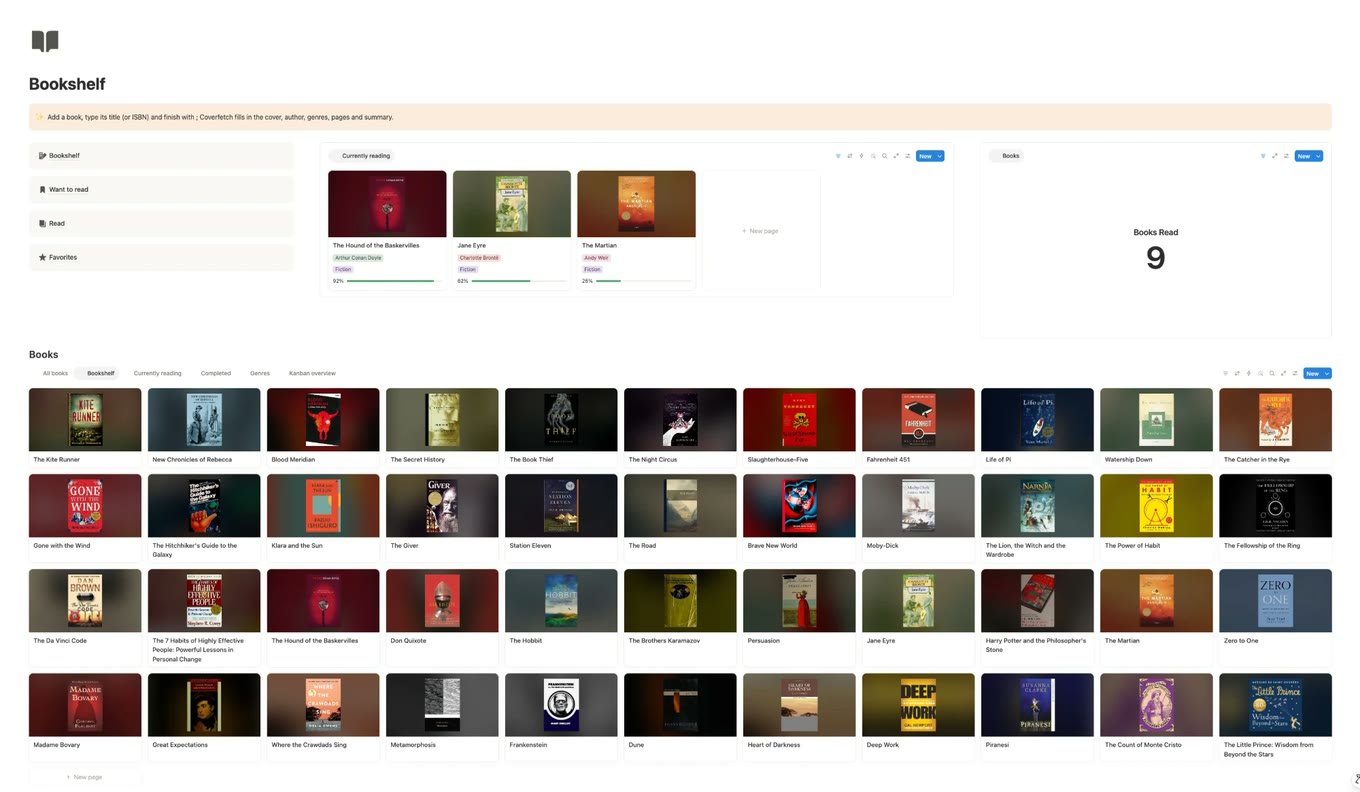
- Shelf (Gallery): every book as a cover. In the view's Layout settings, set Card preview to Page cover, turn on Fit image, and pick a card size. Hide every property except Title (and maybe Authors).
- Currently reading (Gallery or List): filter Status is Reading.
- Read (Table): filter Status is Read, sort by Finished, newest first.
- Board: group by Status, so you can drag a book from Want to read → Reading → Read.
Step 5: Add your books
This is the step that decides whether you keep using the tracker. If adding a book means opening another tab to look up the author, the page count and a cover image, you'll stop after a week. I did.
So I built Coverfetch to do it from inside Notion. In your Books database, type the title (or the ISBN) in a new row and end it with ;:
Project Hail Mary;A few seconds later the row has its cover, authors, genres, page count, publisher, published date, ISBN and a short summary. It only fills empty properties, so anything you typed yourself stays as it is. If a title is shared by a few books, write Title by Author; to get the right one.
; in Notion. Everything else fills in by itself.Coverfetch costs $49, once. If you'd rather add books by hand, that works too: fill in the properties yourself and add a cover from the page's Add cover button. How to add book covers in Notion covers the free ways to do covers, including linking them by ISBN.
Step 6: Track your progress
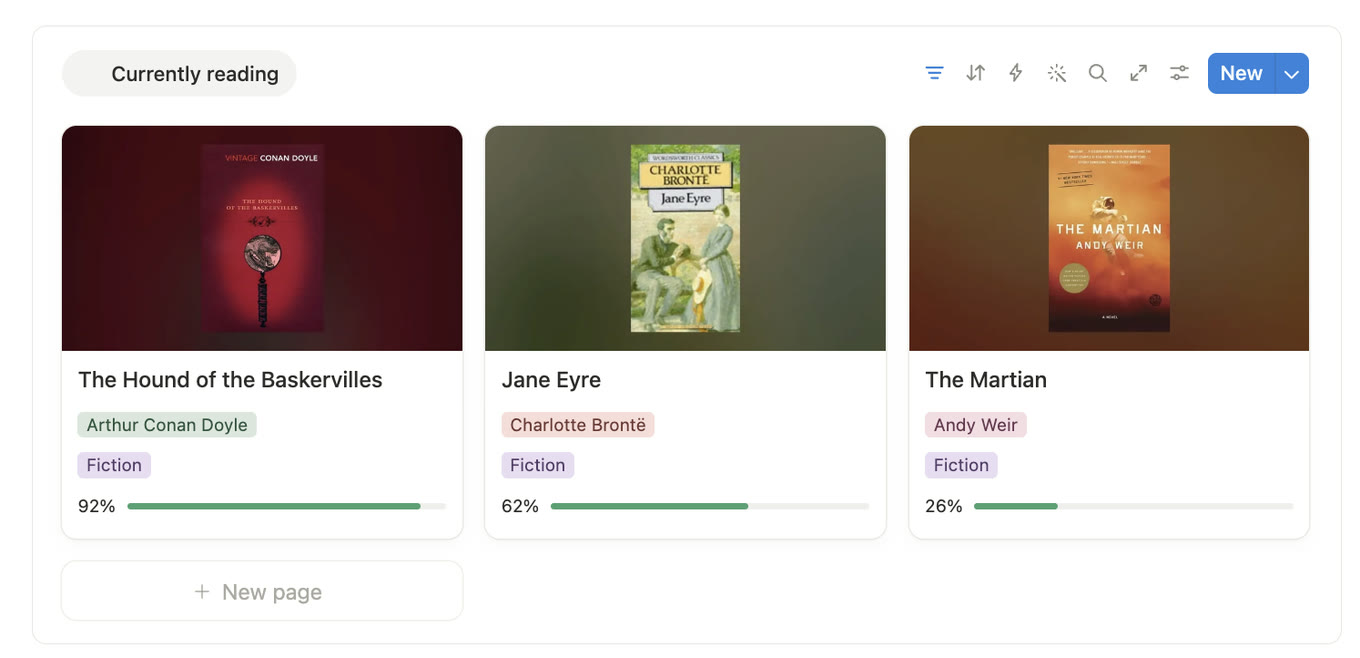
Add a Current page number property and a formula that divides it by Pages, then show the formula as a bar. It takes two minutes: here's the reading progress bar formula. Put it on your Currently reading cards and you get a little bar under each book.
Coming from Goodreads?
You don't have to start from zero. Goodreads lets you export your whole library as a CSV, and Notion can import it. Here's how to move your Goodreads library into Notion, including what the export leaves out.
FAQ
Can I build a reading tracker on Notion's free plan?
Yes. Databases, gallery views, formulas and status properties are all on the free plan.
Does it work on the Notion mobile app?
Yes. The views, covers and properties all show on mobile. Gallery views with covers look especially good on a phone.
How many books can one database hold?
Far more than anyone reads. Large databases can get slower to load, so if yours gets huge, filter your default view (for example, hide books finished more than a year ago).
Should I use one database or several?
One. Use views and filters for "to read", "reading" and "read" instead of separate databases, so a book never has to move between them.
Fill your Notion reading list automatically
Type a book's title followed by ; in Notion and Coverfetch fills in the cover, author, genres, page count and summary.